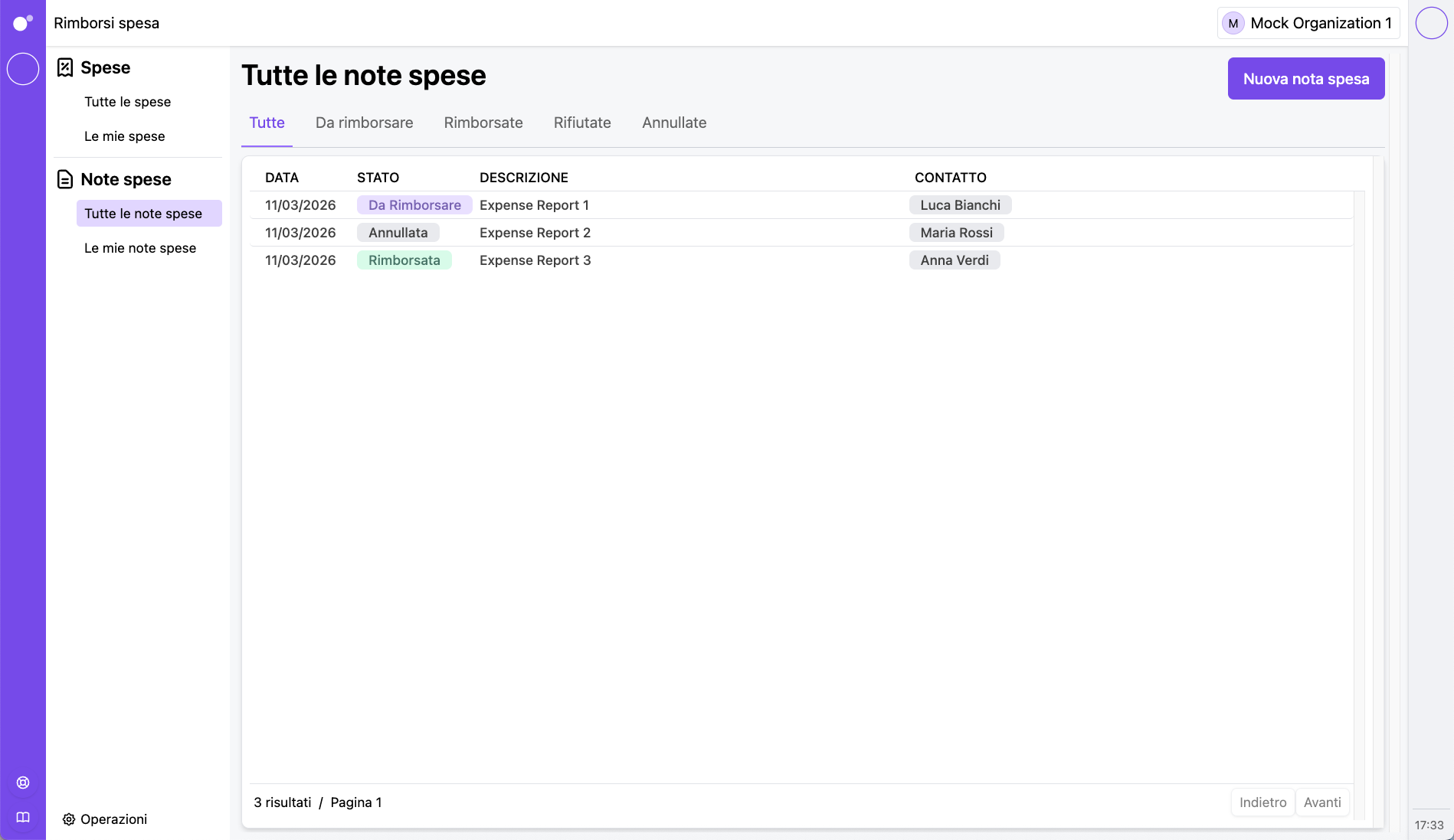
Admin setup for Humans
If you are setting up Humans for your organization, there are a few steps to complete before people can start using the system effectively. This guide walks you through the full setup, from adding collaborators to enabling attendance tools.
What to set up first
Before your team can work properly with Humans and related apps, make sure you have completed the following:
Add collaborators and send invitations
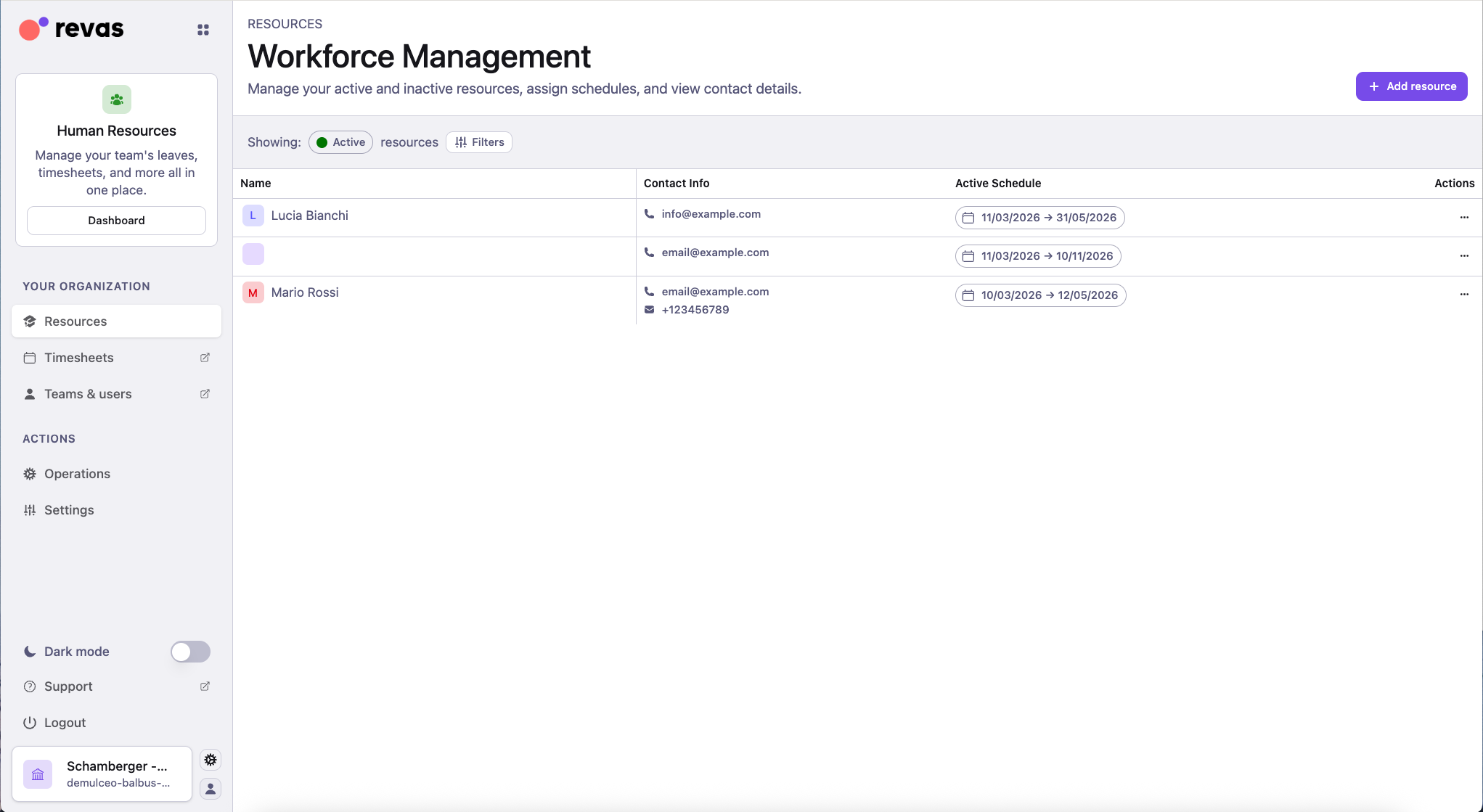
The first step is adding the people who will be part of the organization.
Each collaborator needs to exist in RevasOS before you can assign them contracts, schedules, roles, or any other configuration. Once a collaborator is added, send them an invitation so they can access the platform.
Enrich personal information
Once collaborators have been added, take time to fill in their personal and organizational details.
This includes contact data, tax information, job titles, and any custom fields your organization requires. Having complete and accurate records from the start avoids corrections later and makes reports more reliable.
Related guides
Create human resources with work hours contracts
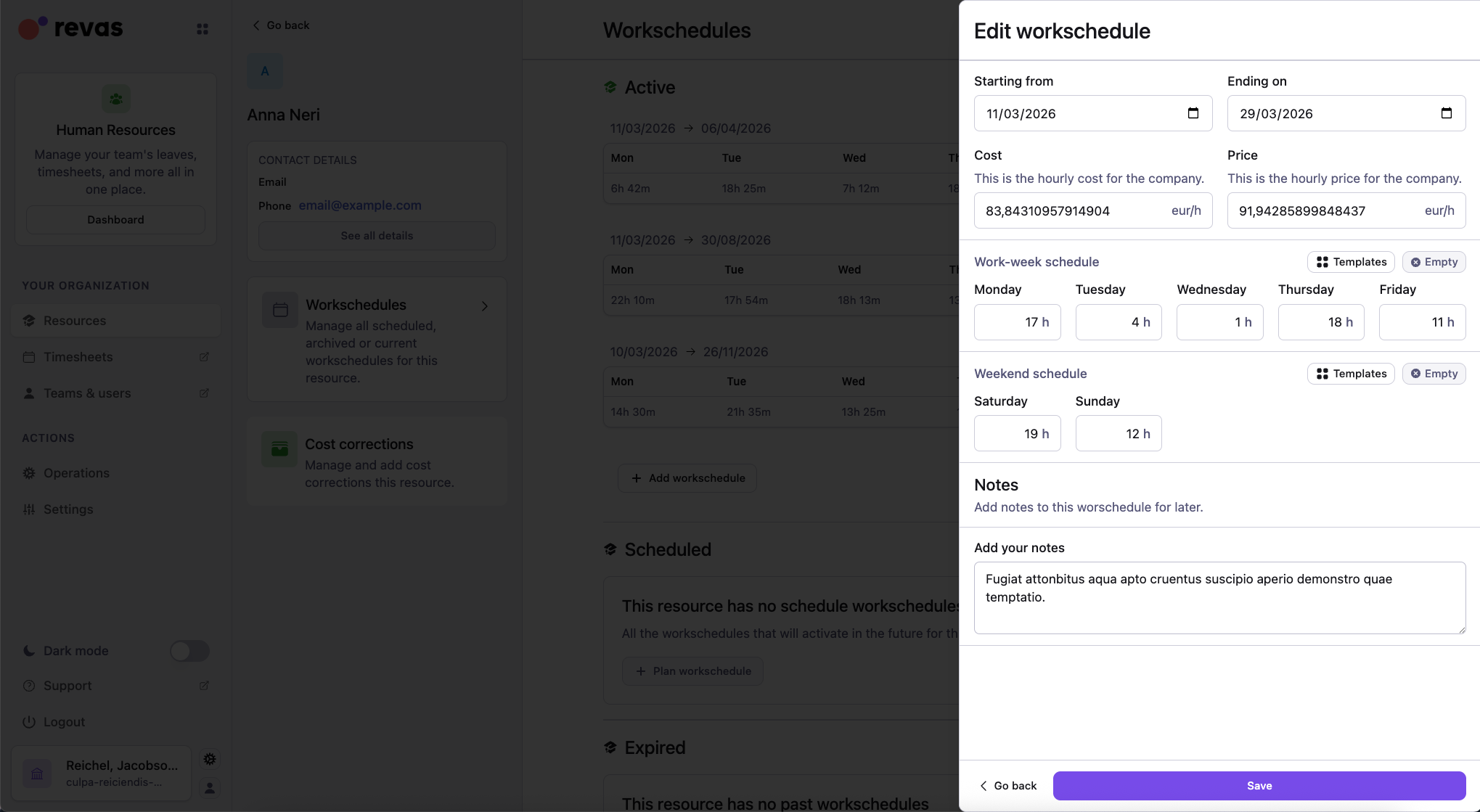
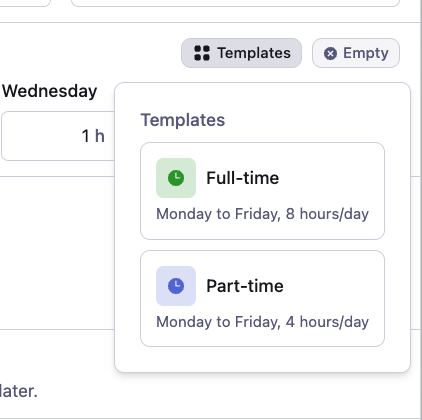
Each collaborator who needs time tracking, reports, or absence management must also be set up as a human resource with a work hours contract.
The work hours contract defines the expected working days and daily hours. This is what allows RevasOS to calculate:
- expected hours vs. actual hours;
- hour balances;
- absence tracking and leave balances.
Without a work hours contract, time entries can still be recorded, but hour balances and reports will not be available.
Related guides
Configure workplaces and absence types
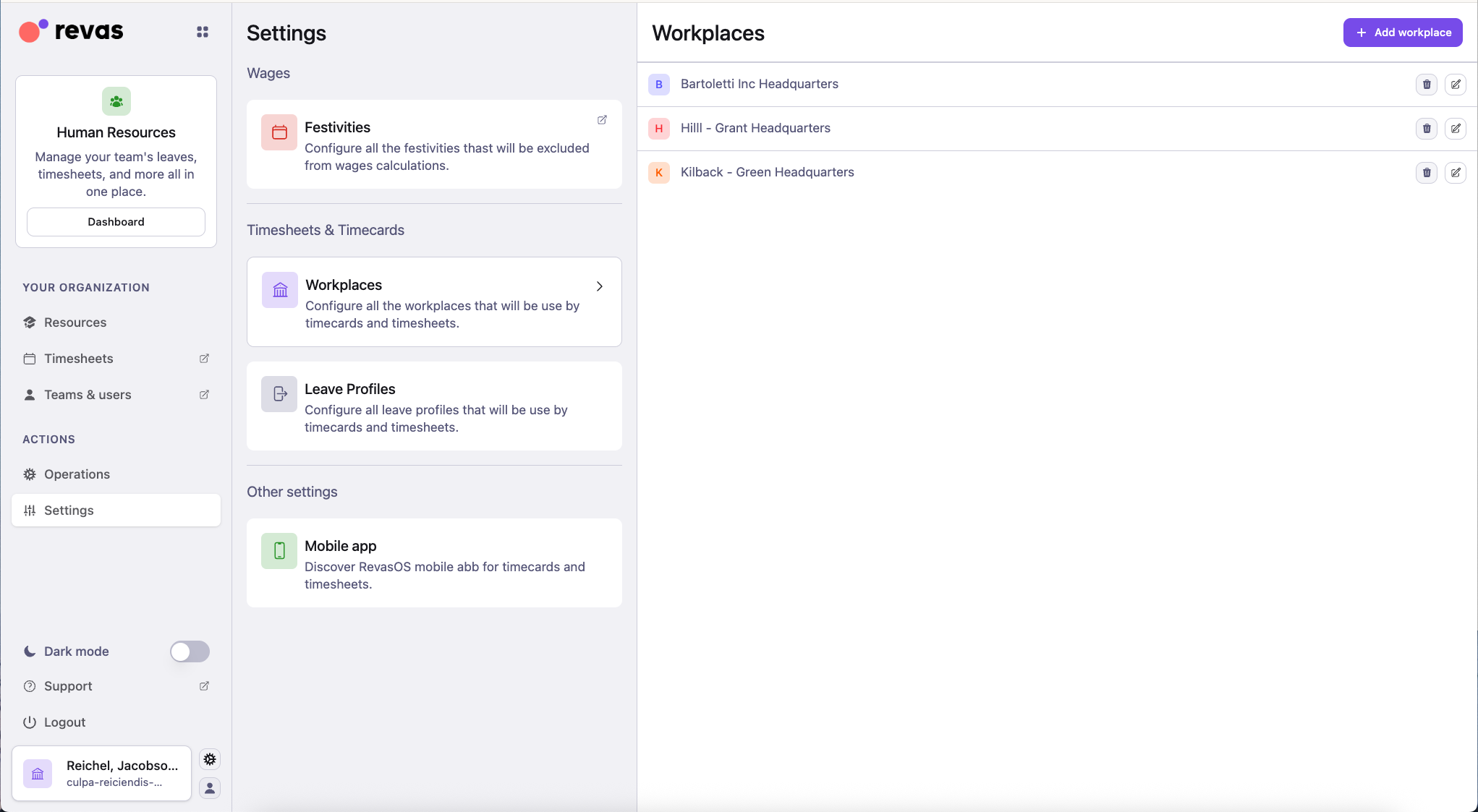
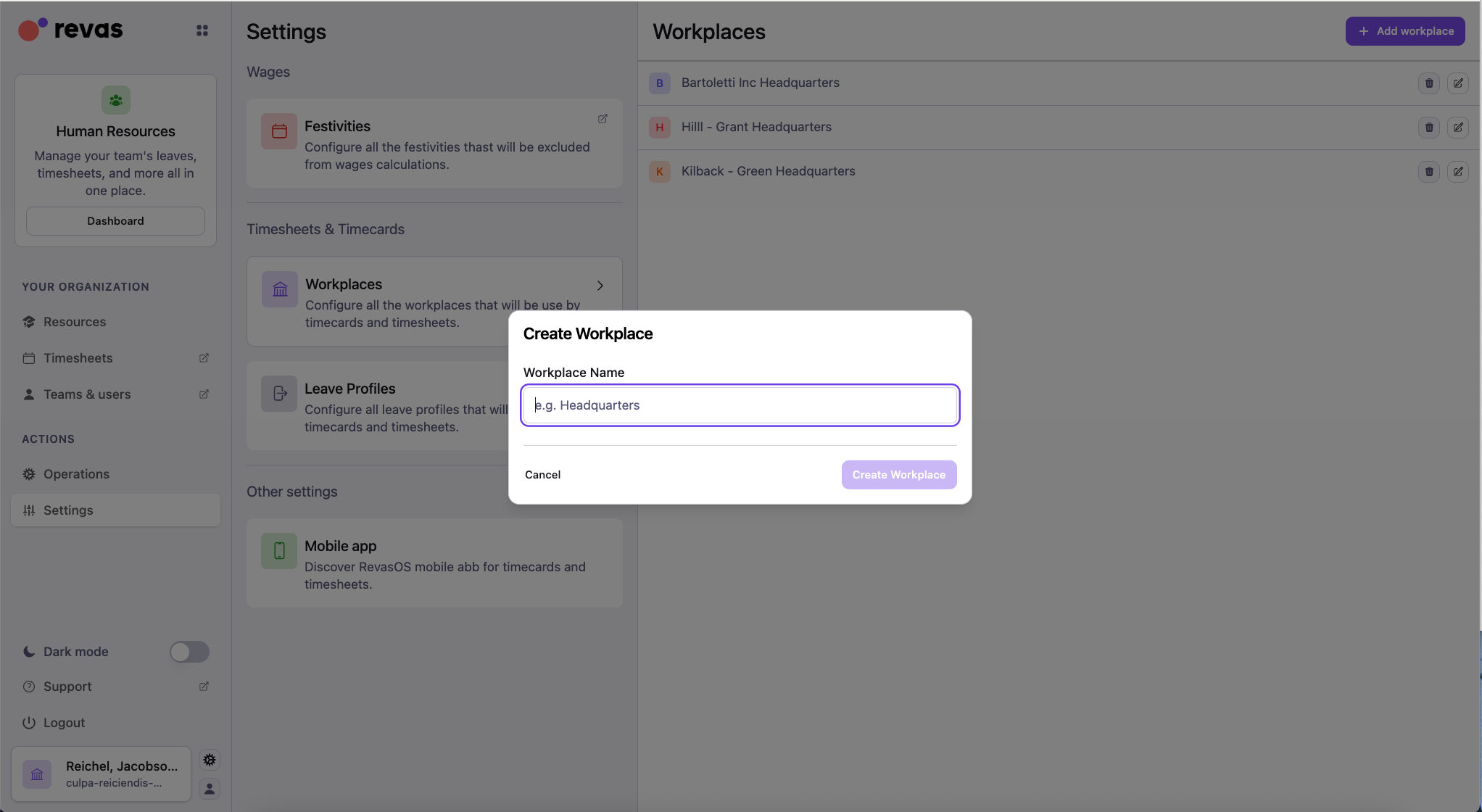
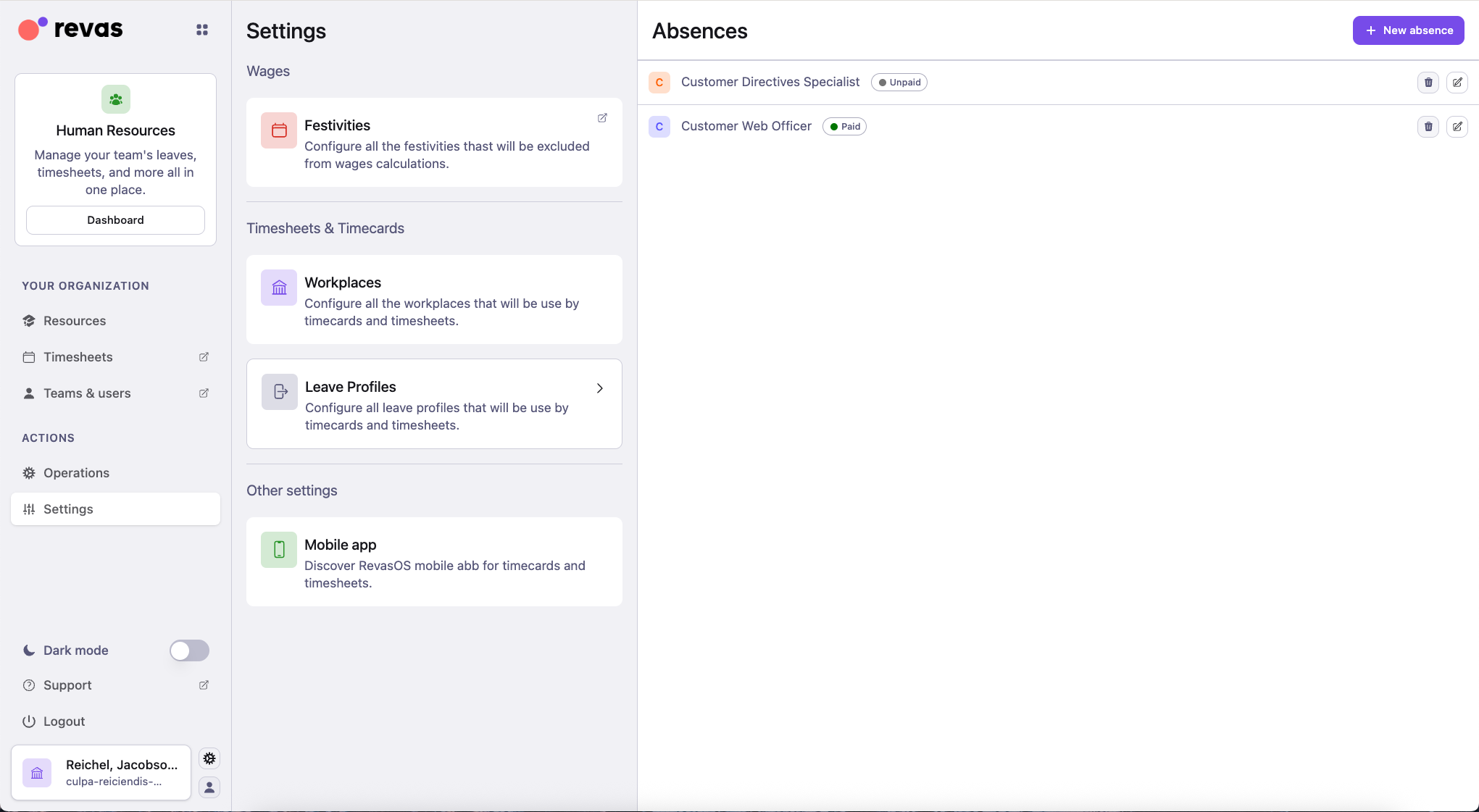
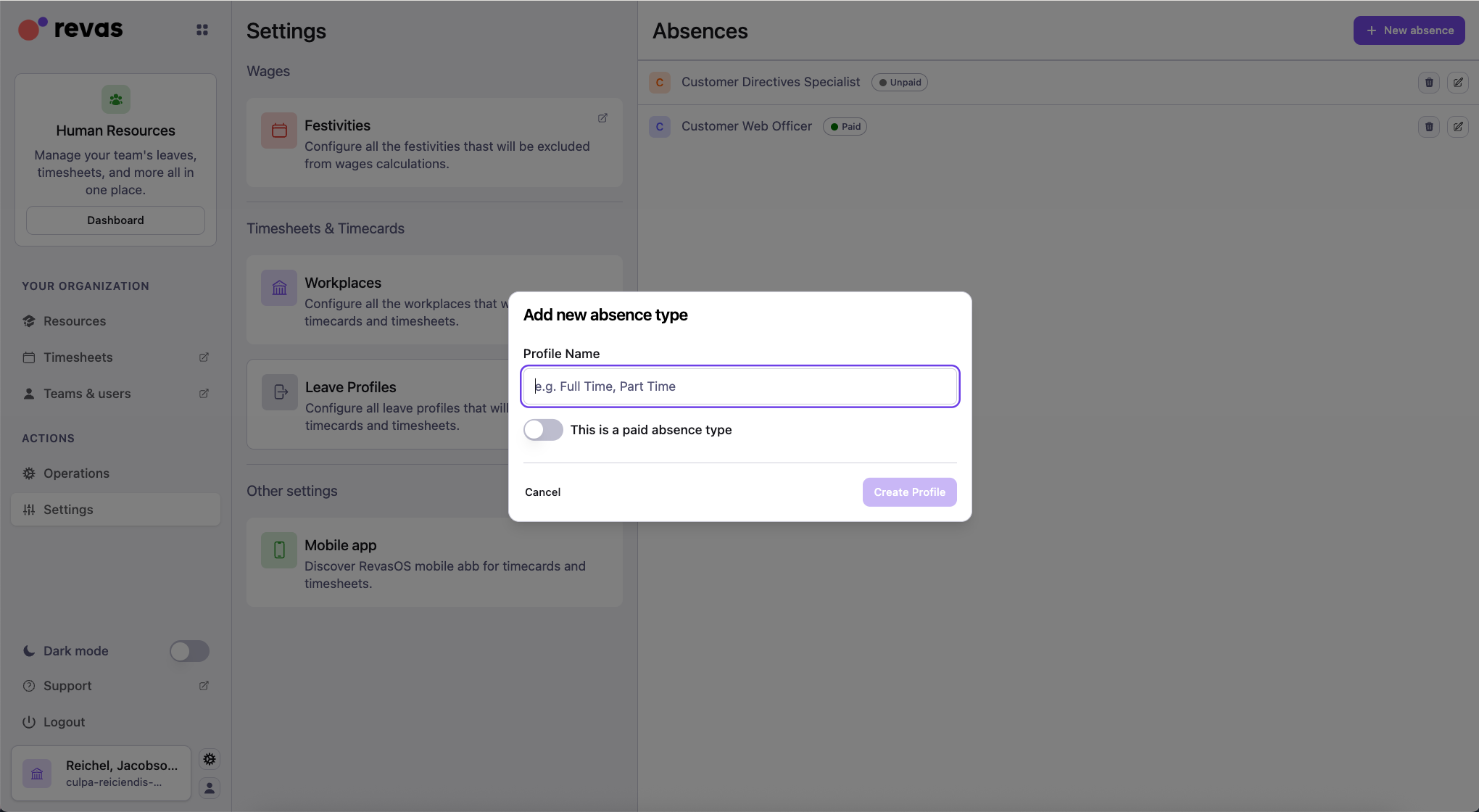
Workplaces and absence types are organization-wide settings that affect how time entries are categorized.
Workplaces are the physical locations where collaborators clock in. They are used for presence entries in Timesheets and for timecard stamps in Timecards. Set up at least the workplaces where your team operates.
Absence types (leave profiles) define the kinds of non-working time available in the organization, such as vacation, sick leave, or personal days. Each absence type has a working or non-working flag that affects balance calculations.
Related guides
Set up the holiday calendar in Leaves
The Leaves module lets you configure an official holiday calendar for the organization. This ensures public holidays are reflected in absence calculations and work schedules automatically.
Set up the holiday calendar early so that reports, balances, and absence planning take national and company holidays into account from the start.
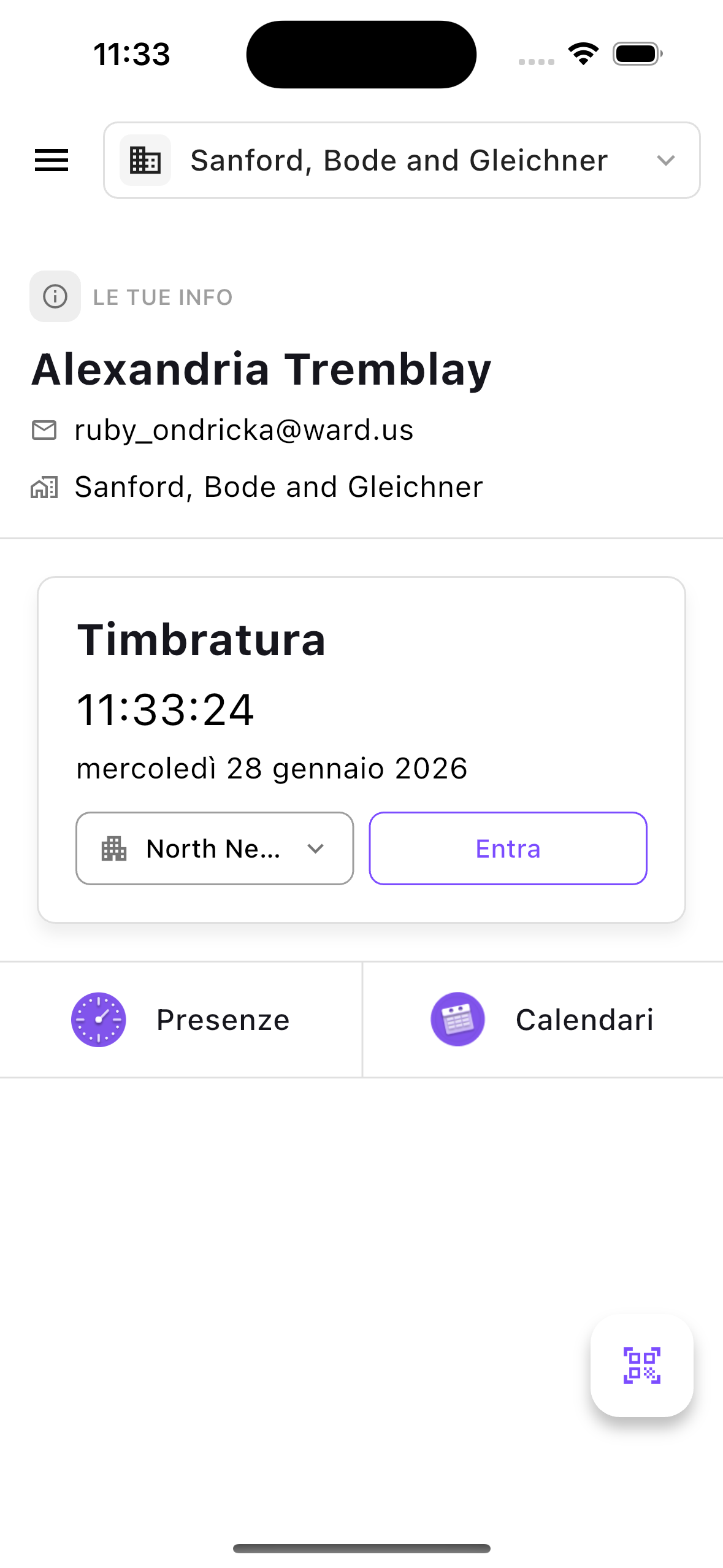
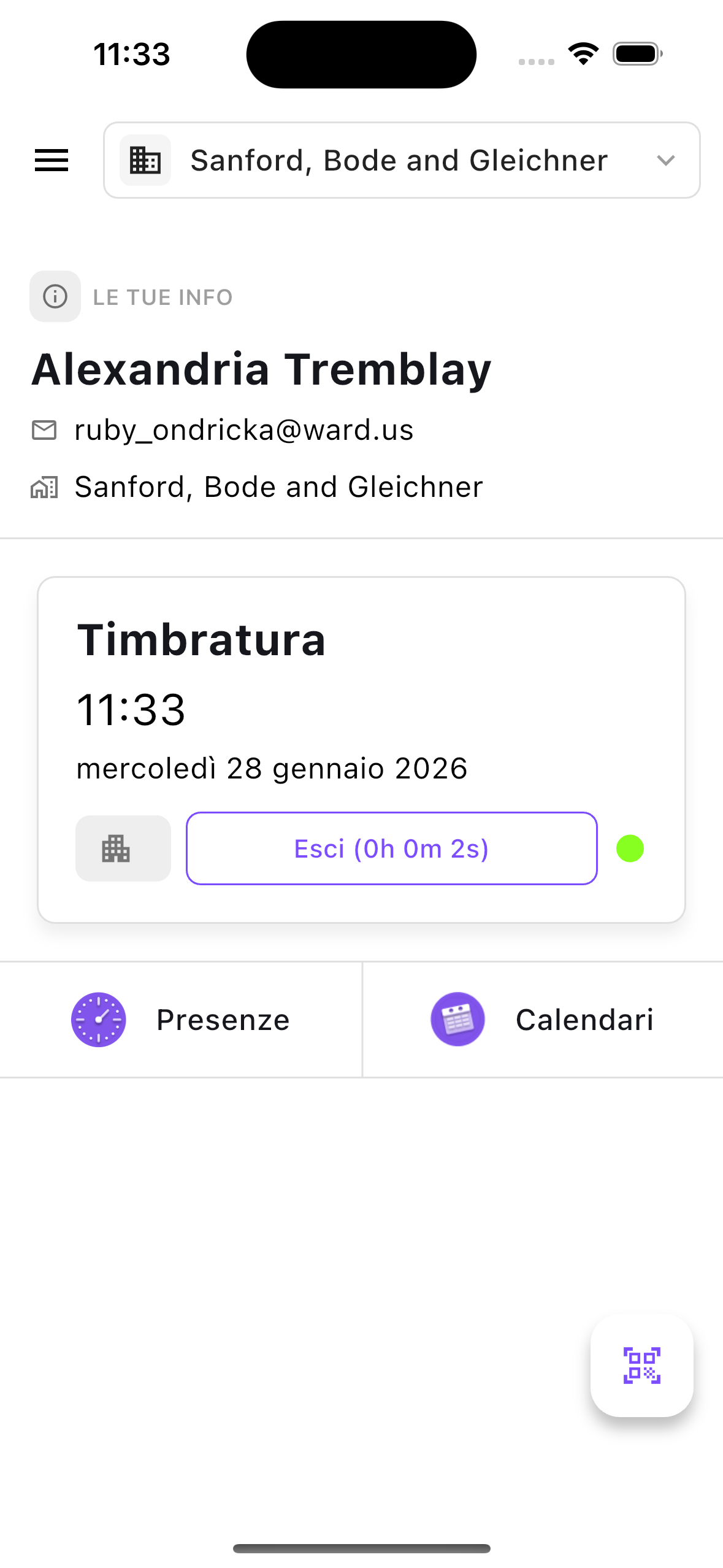
Install the mobile app for users
If collaborators need to log time, check schedules, or clock in from their phones, ask them to install the mobile app as early as possible.
This is especially useful for:
- field workers who do not have access to a desktop;
- hybrid workers who split time between office and remote;
- anyone who needs to clock in via their smartphone.
Related guides
Share the QR code for workplace clocking
If your organization uses Timecards for attendance, you can generate a QR code for each workplace and print or display it at the entrance.
Collaborators scan the QR code with their phone to clock in and out without needing to search for the workplace manually. This speeds up the process and is especially practical for locations with many employees coming and going at the same time.
Recommended setup order
For the fastest reliable setup, follow this order:
- Add collaborators and send invitations.
- Create teams and assign collaborators to them.
- Assign roles and permissions for Humans and related apps.
- Fill in collaborator personal information.
- Create human resources with work hours contracts.
- Configure workplaces and absence types.
- Set up the holiday calendar in Leaves.
- Roll out the mobile app to collaborators.
- Print or share workplace QR codes for clocking.
After setup: explore related apps
Once the Humans setup is complete, several other apps build on top of this foundation. Here are the most useful areas to explore next.
Timesheets reports
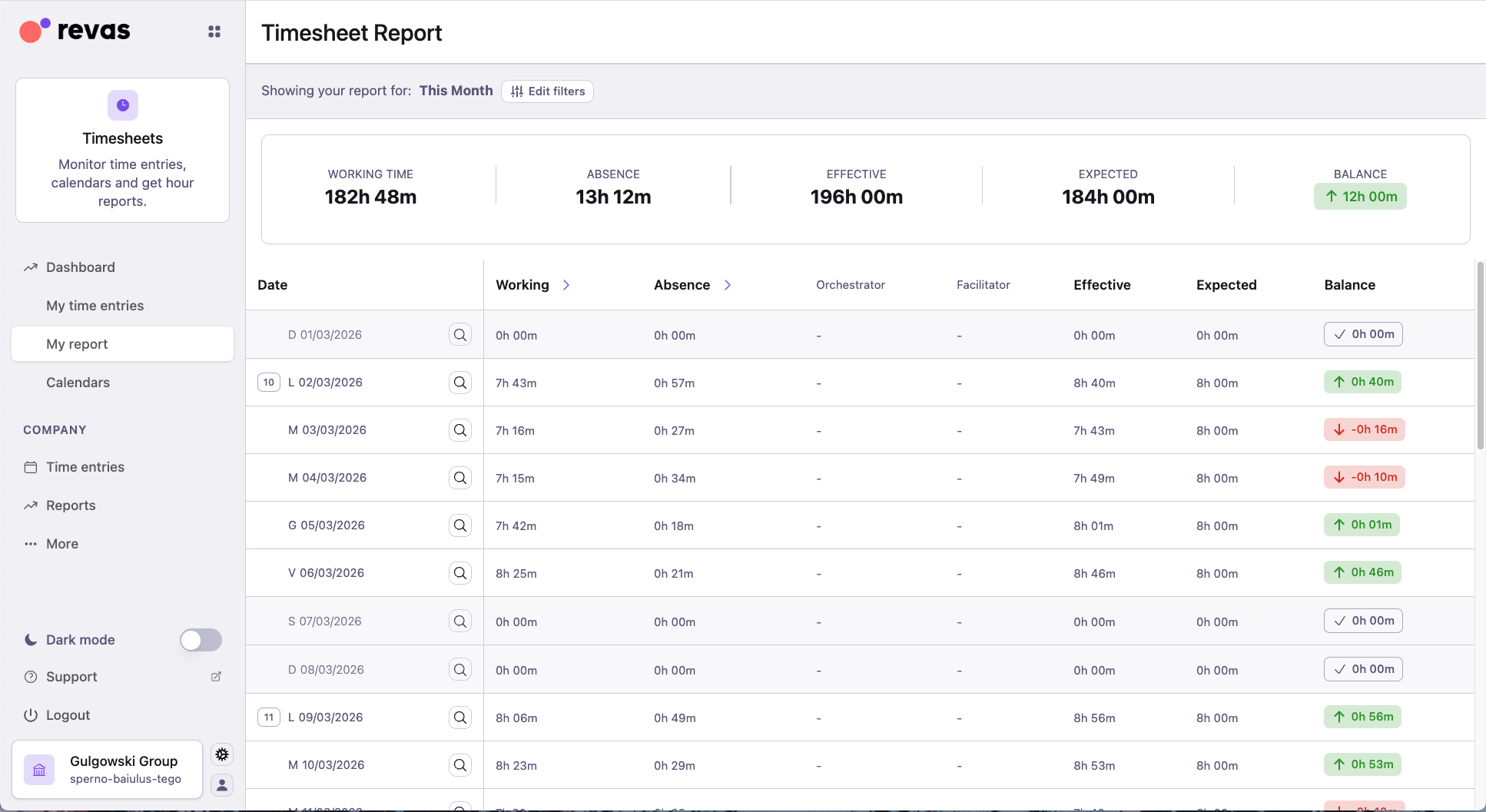
Use the Timesheets app to view time reports for each employee, compare expected and actual hours, and export data for payroll or analysis.
Related guides
Timecards
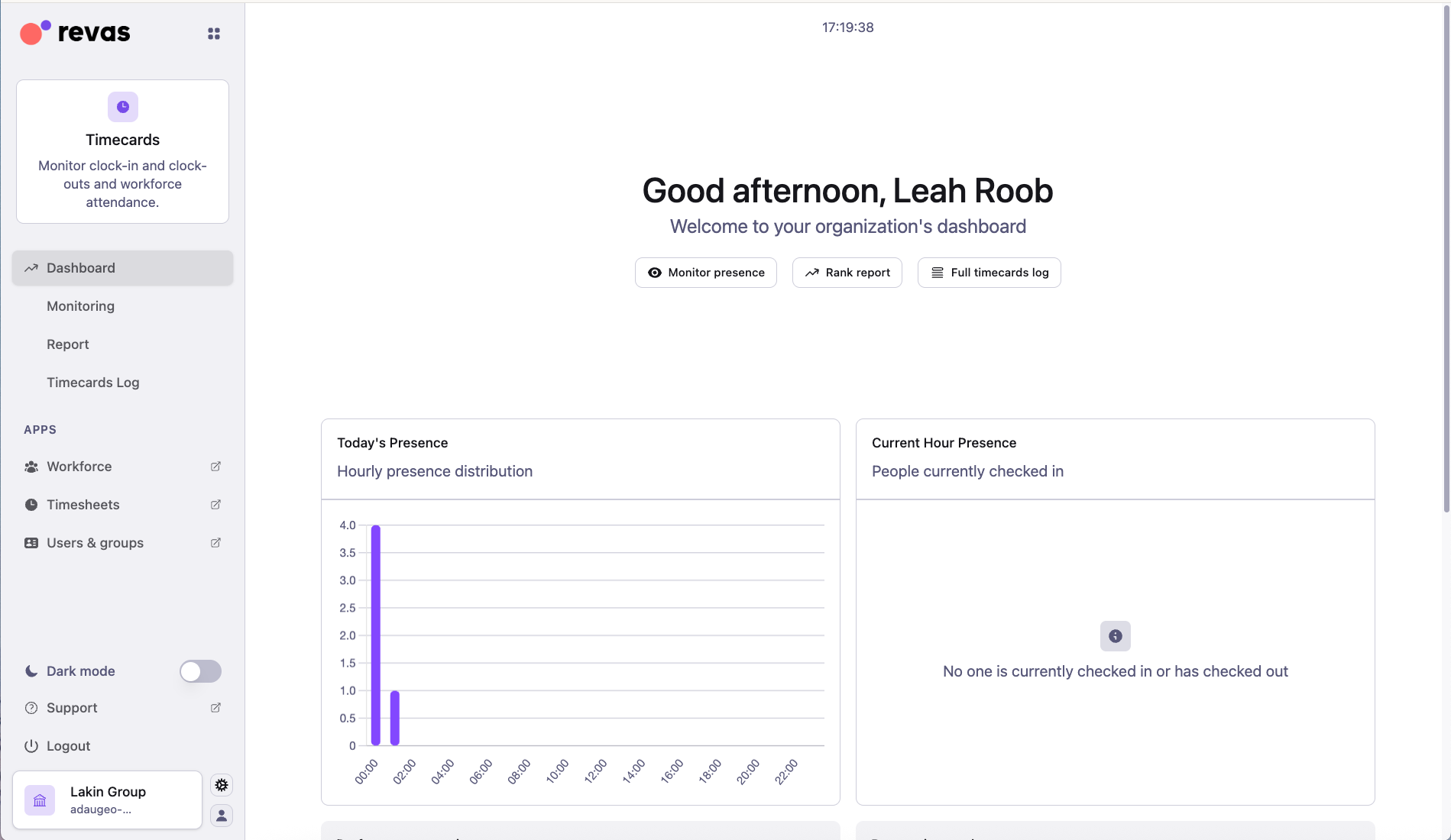
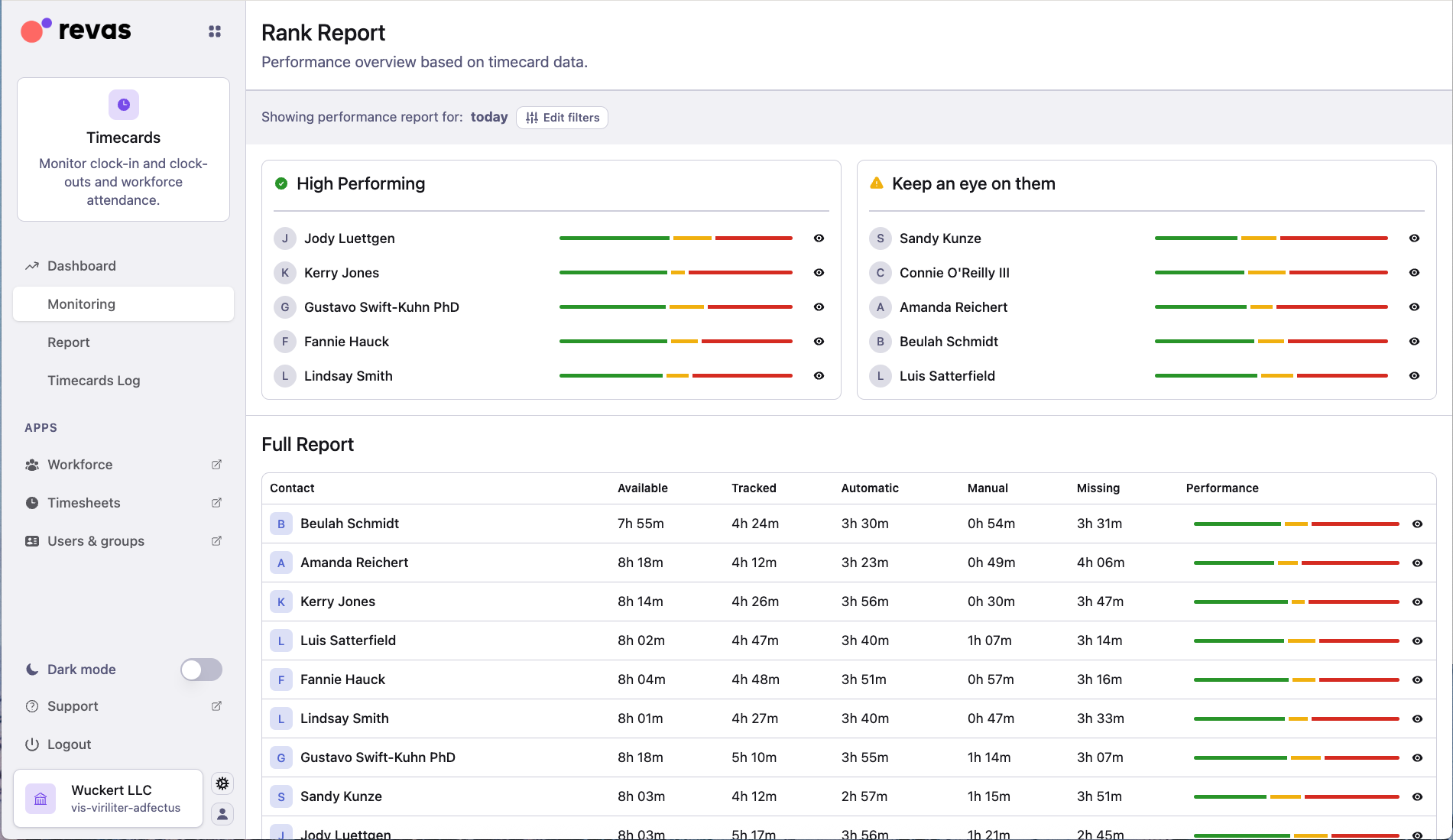
Use Timecards to monitor real-time clock-ins and clock-outs across all workplaces.
Allocations
Use allocations to monitor workload distribution across your team. You can view allocations at the project level or in the detail view of each human resource.
Related guides
Expenses and reimbursements
Use the Reimbursements app to manage expense reports, approve or reject them, and export data for accounting.